
Help Page
Quick guide through the Aquajet Calculator 3.0 App
Our newest update added compelling improvements to the user experience.
For those who are familiar with the older app, the core functionality is the same with additional parameters and improved navigation.
Supported platforms
The Aquajet Calculator 3.0 is available on Android and Apple devices.
Calculations
Like every successful construction work, Hydrodemolition requires meticulous planning and preparation.
In order to make your work easier we have updated our smartphone app to assist you with this process. Calculate parameters like water flow, velocity, pressure, nozzle sizes, reaction forces and more.
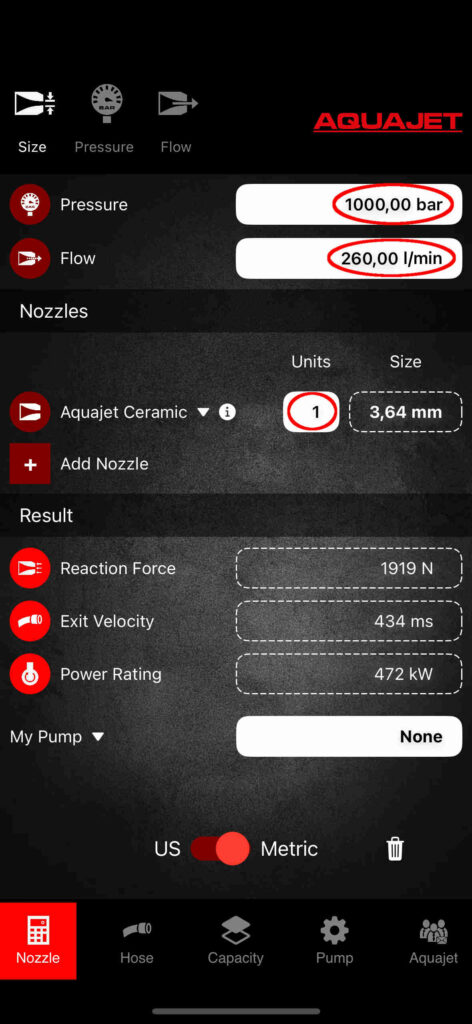
Calculate nozzle size
The first window is where you calculate nozzle size from a given pressure and flow. Type your values into the white fields for pressure and flow as indicated above and then select the nozzle by either clicking on the current Nozzle or by adding a new one, then set the quantity that should be used.
The results are displayed in the dashed fields.
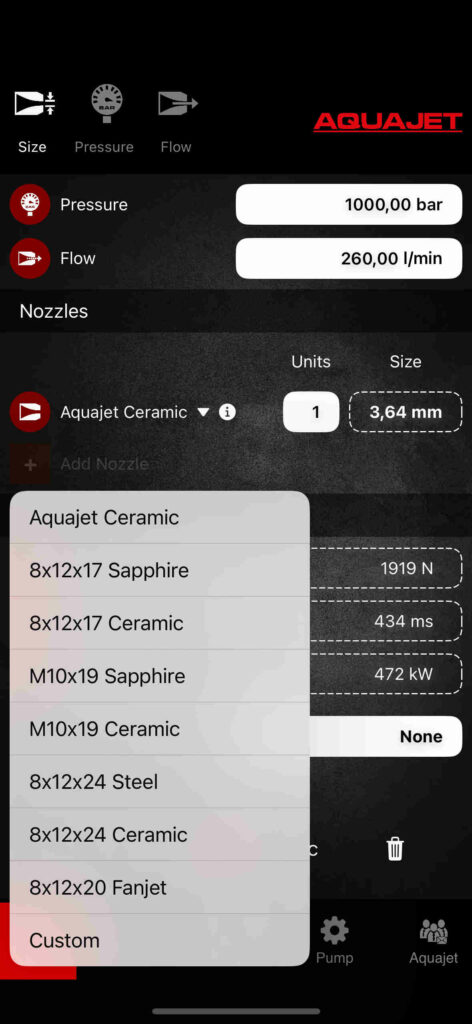
Calculate multiple nozzle sizes, including custom ones.
The app also supports calculation of multiple types of nozzles in the same setup. They all operate the same way as in the previous instruction except for the Custom Nozzle.
Upon choosing a Custom nozzle, by clicking on the cogwheel to the right of it will expose a new field where you can define its factor. This allows you to calculate any brand of nozzle you want.
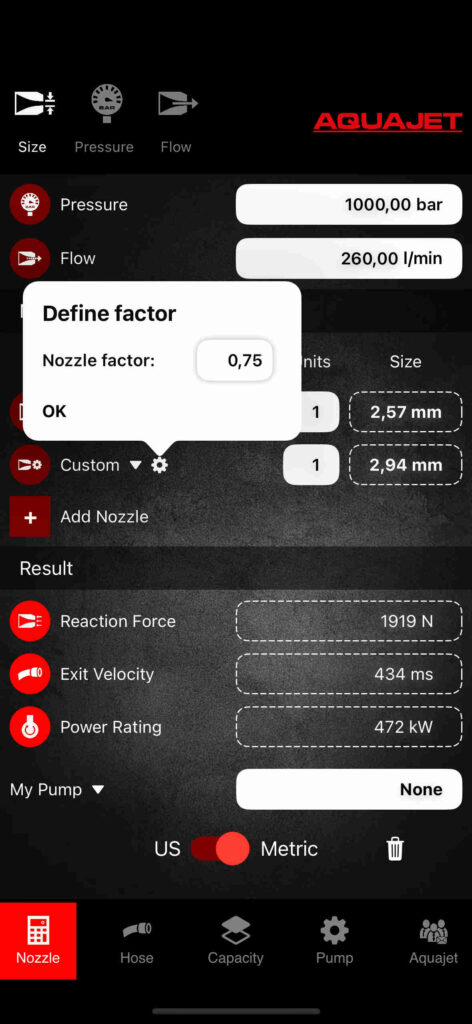
Visualizing existing nozzles and their details, except for custom ones.
Our newest app includes 3D visualizations of the existing nozzles alongside detailed information like part number and nozzle factor. You can visualize them by clicking on the information icon to the right of the nozzle name field.

Calculate pressure or flow
By selecting pressure or flow in the upper menu bar it is possible to perform the given calculations.
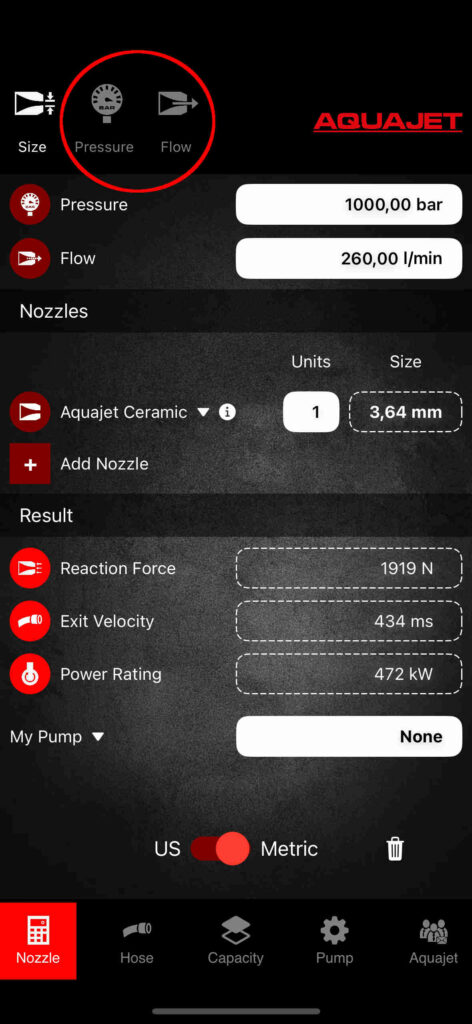
The calculations are performed in the exact same way, but now you can also define the size of the nozzles for calculating either the pressure or flow. It is also possible to calculate them when using multiple nozzles.
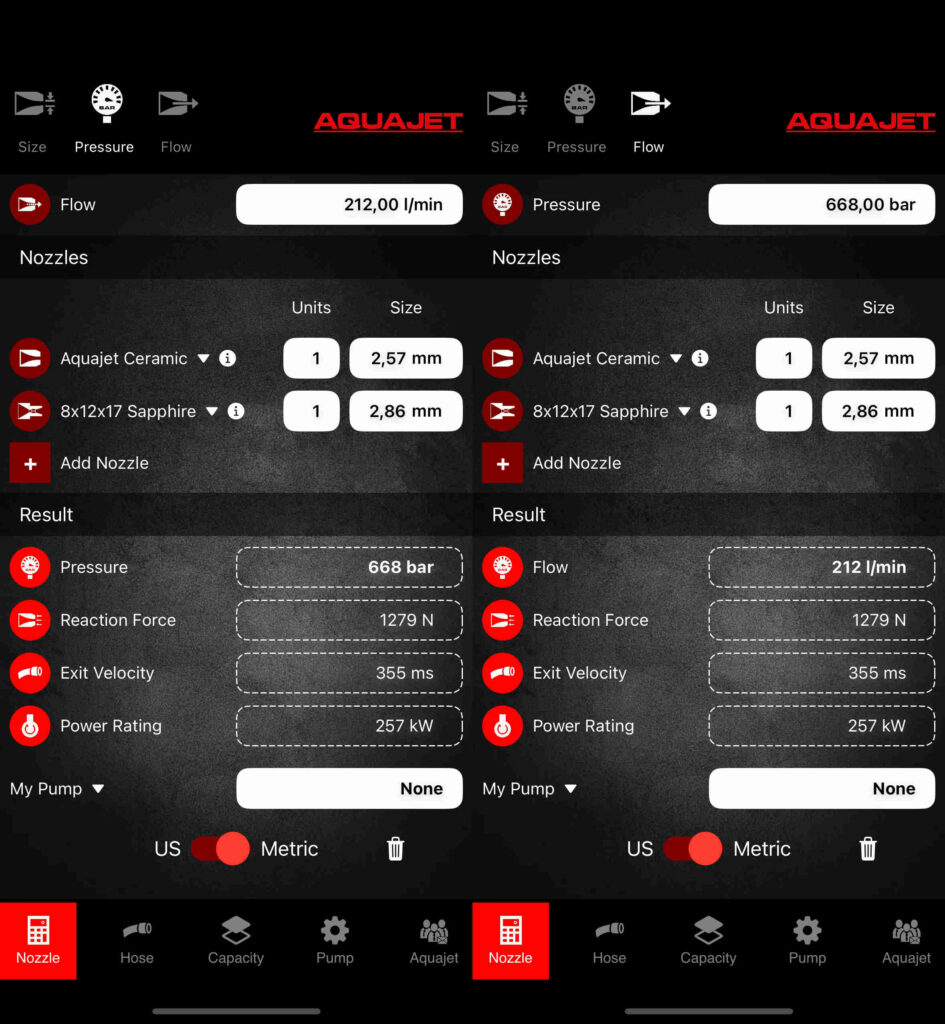
Variables for these 3 pages (Size, Pressure and Flow) within the Nozzle calculations tab.
- Pressure: The pressure from the high pressure pump
- Flow: The flow from the high pressure pump
- Different nozzle types, you can learn more about them by clicking on the information icon beside it.
- Custom nozzle: Upon selecting custom nozzle, set its factor by clicking on the cogwheel beside it.
- Reaction force: The reaction force on the tool or the robot.
- Exit Velocity: The velocity when exiting the nozzle.
- Power rating: The power required to drive the high pressure pump.
- Engine Speed: The engine speed in which the engine is expected to be operating at, only available after setting up a pump.
Calculate pressure loss in high pressure hoses
The hose calculation will help you calculate the pressure loss in the high pressure hoses. Type your values into the white fields and, just like in the previous Nozzle tab, the results are displayed in the dashed fields.
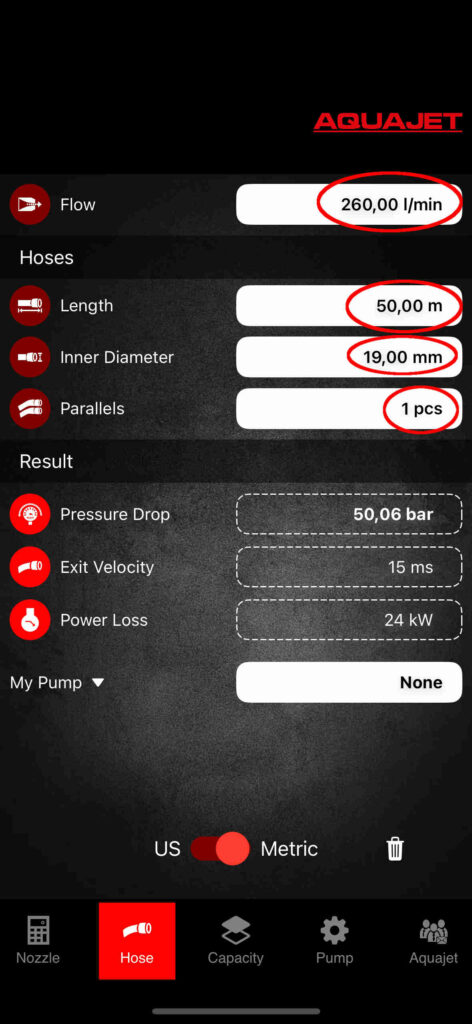
Variables
- Flow: The flow from the high pressure pump
- Length: The total length of the hoses from the pump to the tool that is used
- Inner diameter: The inner diameter of the high pressure hose
- Parallels: The number of parallel hoses from the pump to the tool used. Sometimes it is nessesary to run more than one hose to achive enough flow to the tool
- Pressure drop: The total pressure drop that is lost in the hoses
- Exit velocity: The velocity of the water inside the hose
- Power loss: The power that is lost due to the pressure drop
Defining a Pump
For more precision in the previous calculations, you can also define a pump. By filling out the white fields and clicking on the button “Save Pump”, you will be prompted to give it a name and a serial number, and only then you can save it. All saved pumps will then populate this view and be render selectable from within its related views using the field called My Pumps or by clicking on its row within the list.
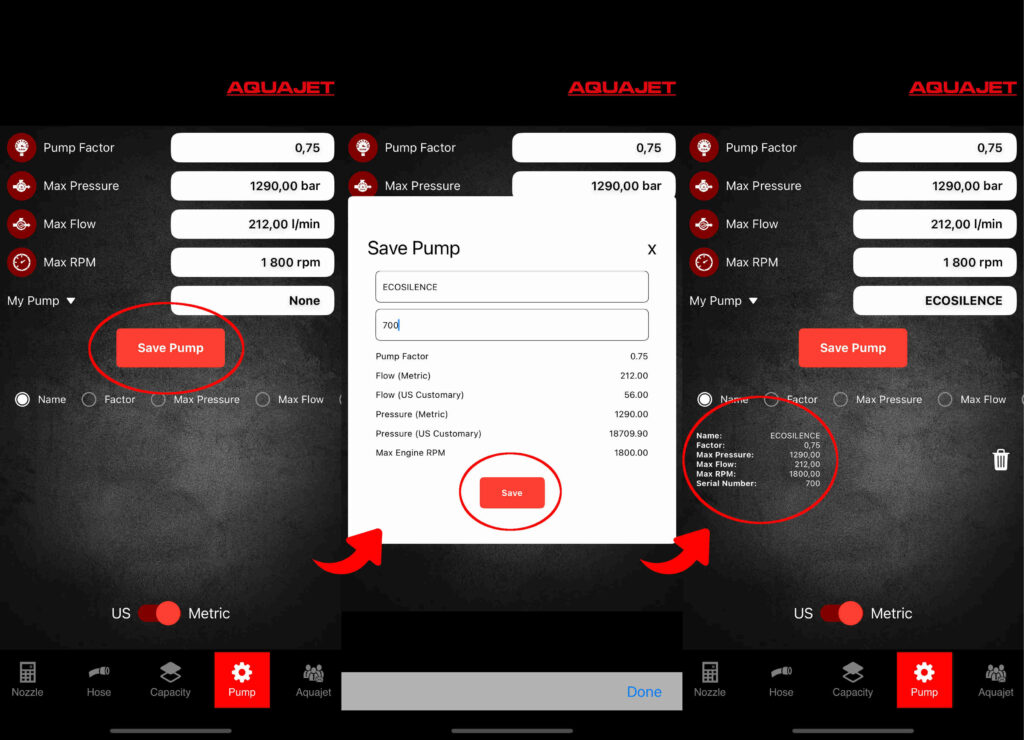
Variables used when defining a pump.
- Pump Factor: Efficiency factor of the high pressure pump, used to calculate the pump power
- Max Pressure: The maximum pressure the pump can operate in.
- Max Flow: The maximum flow the pump can generate.
- Max RPM: The maximum operational speed of the engine.
- My Pump: The pump that is currently chosen.
Limits feedback when surpassing max values
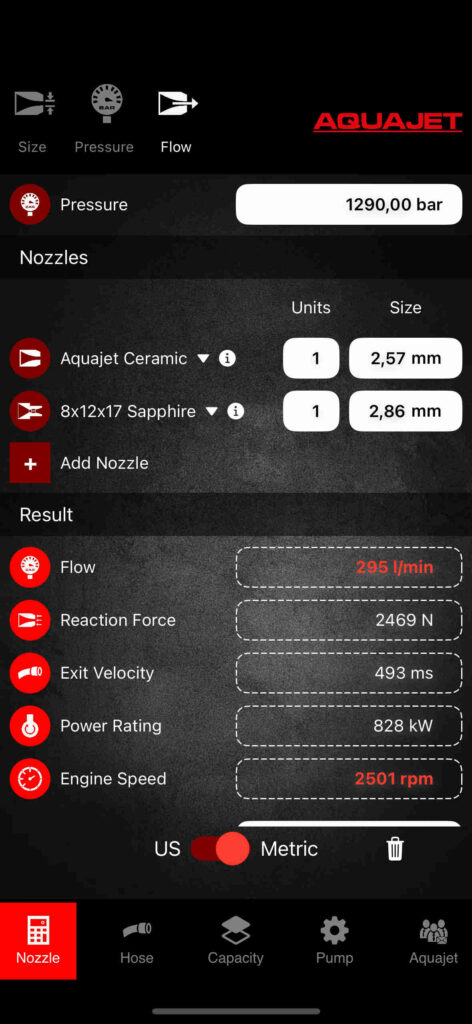
When going beyond the set values, you will be prompted with red text in the related fields such as pressure, flow and engine speed (available as a new result parameter within the Nozzle tabs once a pump has been selected).
Capacity
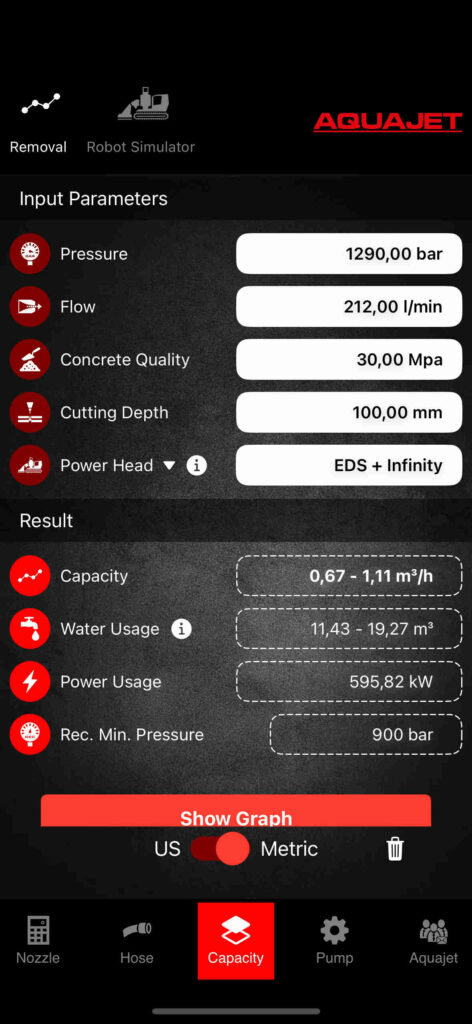
You can also calculate the removal capacity. The calculation can be performed in the same way as in the previous tabs by filling out the white fields with the desired values.
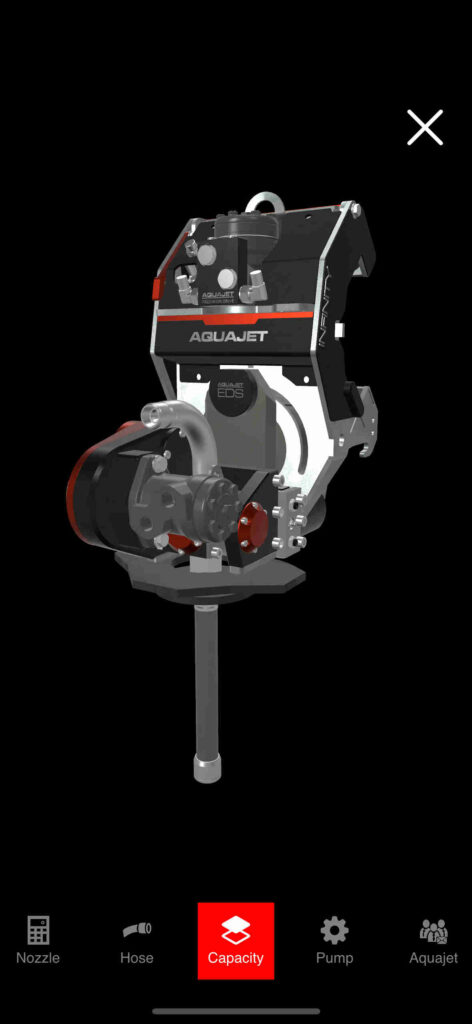
Visualizing Power Heads in 3D
Upon clicking on the information icon in the same row where you can find the choice of power heads, you can visualize them in 3D. By using gestures such as pinching and swiping, you can navigate around the canvas and see them from different angles.
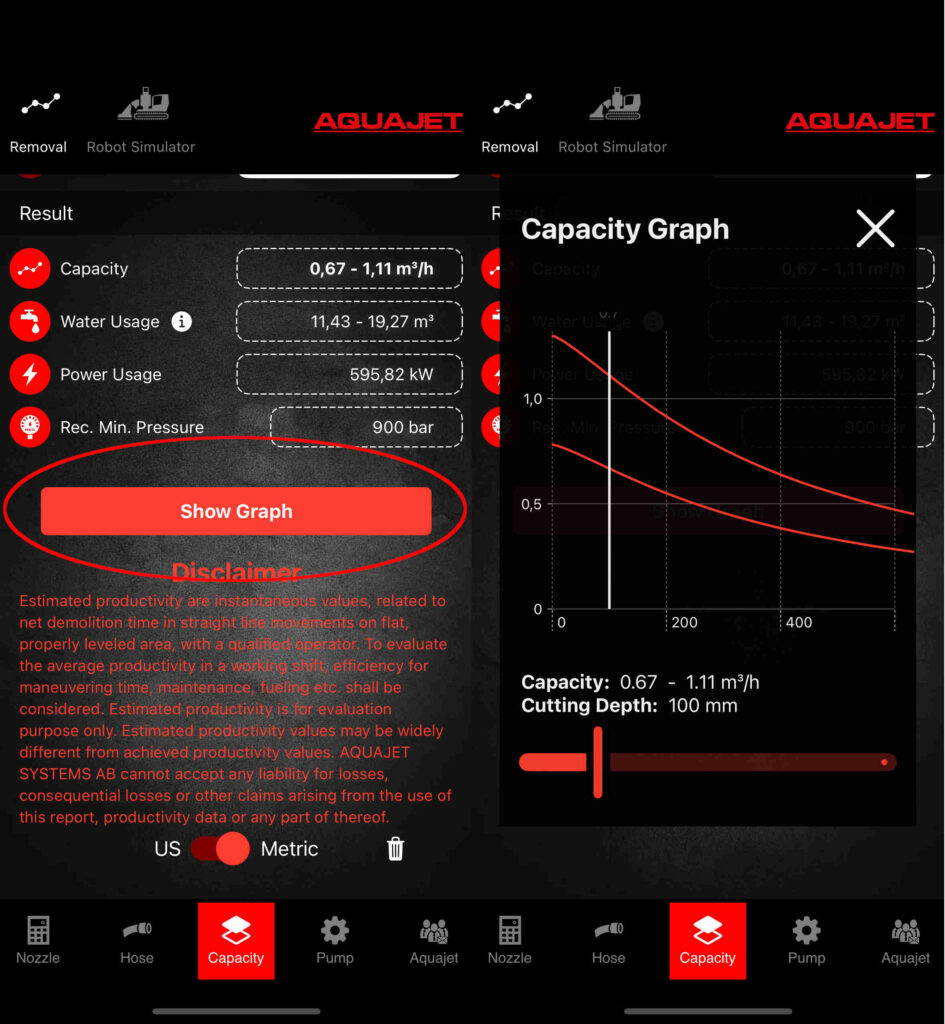
Graph
After all parameters are set and results are being displayed on the screen, a graph will be available for visualizing the expected capacity in a range of multiple depths. Just click on the button to show the graph.
Variables presented within the Removal Capacity calculations
- Pressure: The amount of pressure from the high pressure pump
- Flow: The flow of water from the high pressure pump
- Concrete Quality: The internal strength of the concrete
- Cutting Depth: The target depth to be cut in the concrete.
- Power Head: The type of power head have different effenciency depending on functions.
- Capacity: The amount of concrete expected to be removed per hour.
- Water Usage: The amount of water expected to be consumed per cubic meter of removed concrete.
- Power Usage: The power required from the high pressure pump.
- Recommended Minimum Pressure: The recommended pressure for efficiency. However, even if the pressure is below this value, desired outcome can still be reached less efficiently.
Robot Simulator
This area mirrors the parameters in our Hydrodemolition Robots such as Aqua Cutter, for example. Parameters set here will yield the same results as when input in the robot’s display. Planning and sharing configurations has become easier and user-friendly.
Create and share a PDF file with the desired configuration
Upon clicking the share button (which looks different depending on the device you’re on), you will be prompted to save or share a pdf file with all the configurations you just set.
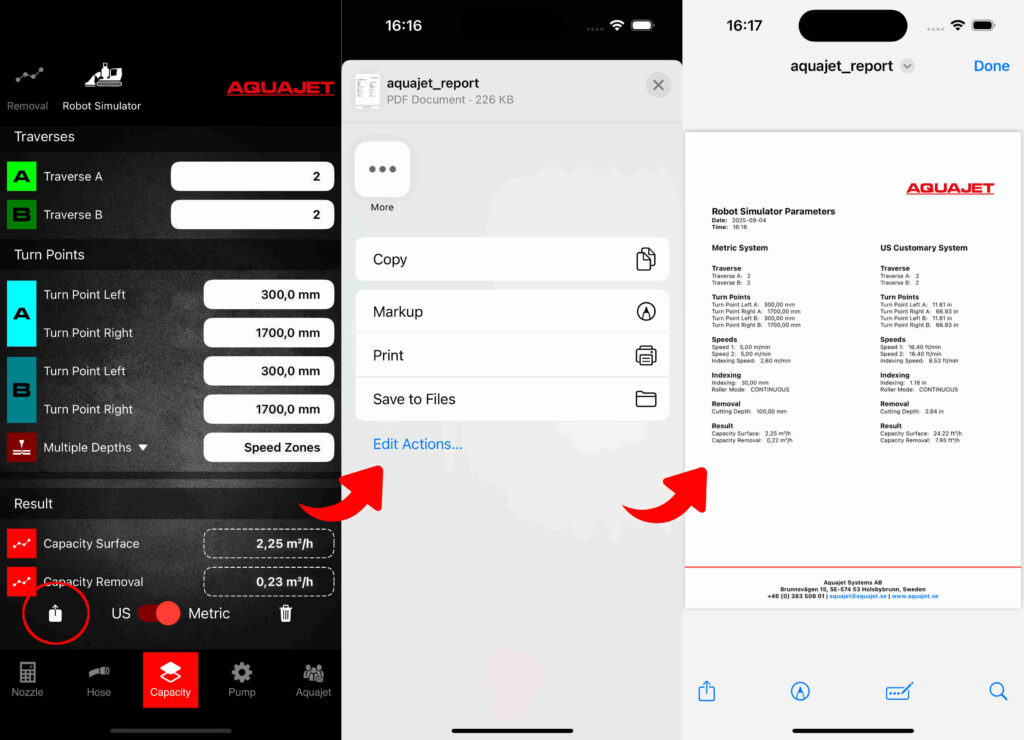
Results
- Capacity Surface: This is the same value as the robot display will show, surface capacity per hour.
- Capacity Removal: By setting a cutting depth, you will also know the amount of concrete expected to be removed per hour.
Aquajet Section
News
In this section you can read the latest news about Aquajet and whenever there is anything new to see, you will get notified once opening the app. By clicking in any of the posts you will be sent to our website for more details on that specific piece of news.

Contacts
Get updated information regarding our headquarters and global partners. All the information is dynamically updated whenever there is any changes.

Find us
The essential contact information of Aquajet.

Feel free to contact us with any further questions about the Aquajet app.